Here, you will learn to manage and view Full-Time Equivalent (FTE) / Enrollment percentages for Student Learning Plans at the school.
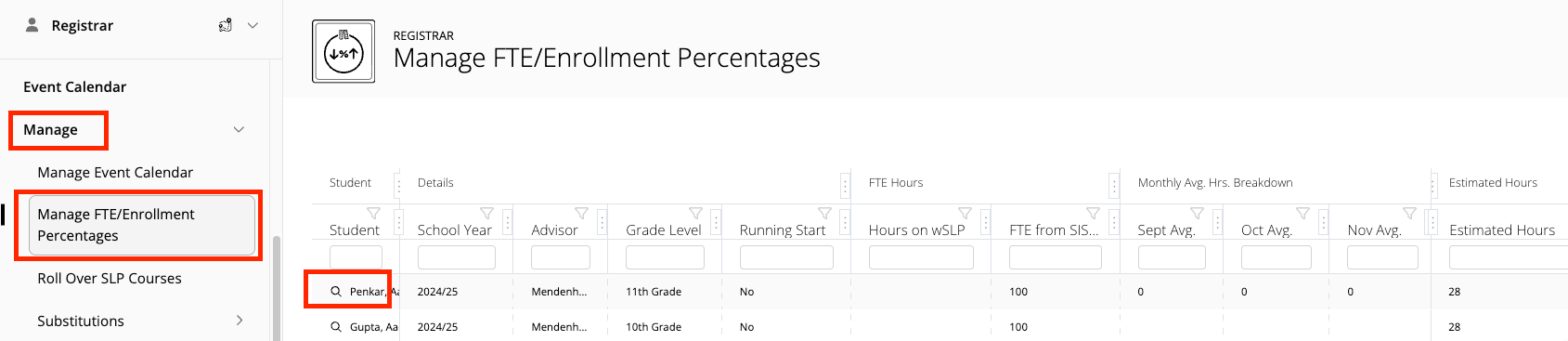
- Start under Manage in the left navigation menu and choose Manage FTE/Enrollment Percentages.
- You will see a table listing students, details, FTE hours, monthly average-hours breakdowns, and estimated hours.
- Click the magnifying glass next to the student's name to view the Manage Student Learning Plan page.
The following reports and downloads are available in ALE to help with FTE and Enrollment reporting.
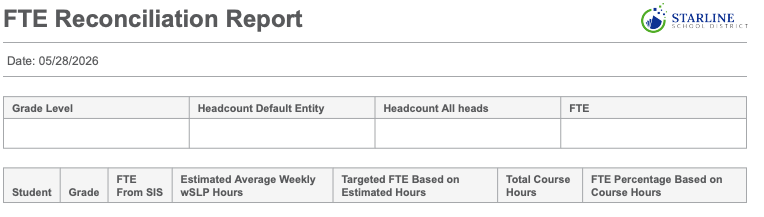
ALE FTE Reconciliation ReportRegistrar Role > Data Extracts > Reports >ALE FTE Reconciliation Report - Designed to be run on the count day.
- Does not pull/store historical data (functions like Skyward P223).
- Only includes students with active wSLP on the day the report is generated.
- Includes both summary and detailed data.
- Headcount Default Entity: Only includes students for whom the default entity is the ALE school.
- Headcount All Heads: Includes any student with an FTE greater than 0.
- FTE: Total by Grade for Students, all students, including those whose default entity is not the ALE school.
- Color coding is included to help identify discrepancies.
- FTE from the SIS: The cell is yellow if the FTE from SIS is 0 and the Percent Actual Total Hours is greater than 0.
- Total FTE Hours: The cell is red if the Percent Actual Total Hours is Less than the FTE from SIS.
Registrar Role > Data Extracts > Data Table >ALE FTE Reconciliation Report - Excel version of student data from the FTE Reconciliation Report
- Does not pull/store historical data
- Great tool to find/identify errors before the count day
|
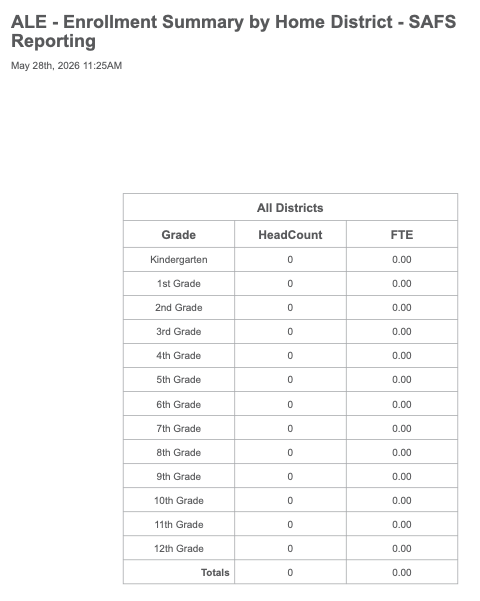
Enrollment Summary by Home District - SAFS ReportingRegistrar Role > Data Extracts > Reports - FTE by District for Choice Transfer Students
- Only surface data is recorded on the details tab of the wSLP
- Designed to be run on the count day (monthly SAFS reporting)
- Does not pull/store historical data
- Includes only students with an active SLP on the day the report is generated.
- Headcount All Heads: Include any student with an FTE greater than 0.
- FTE: Total by Grade for Students, including those whose default entity is not the ALE school.
- Includes only summary data.
- Does not pull/store historical data.
|
Was this article helpful?
0 out of 0 found this helpful
Have more questions? Submit a request

Comments
0 comments
Please sign in to leave a comment.