Here, you will learn to view operating and resident district data.
- In the My Apps drawer to the left or at the bottom of the Munetrix Homepage, click the Student Migration Map icon.

- You will see various subpages (tabs) across the top of the page.
- Click the Nonresident Data tab. This tab serves as the primary data source for the other tabs.
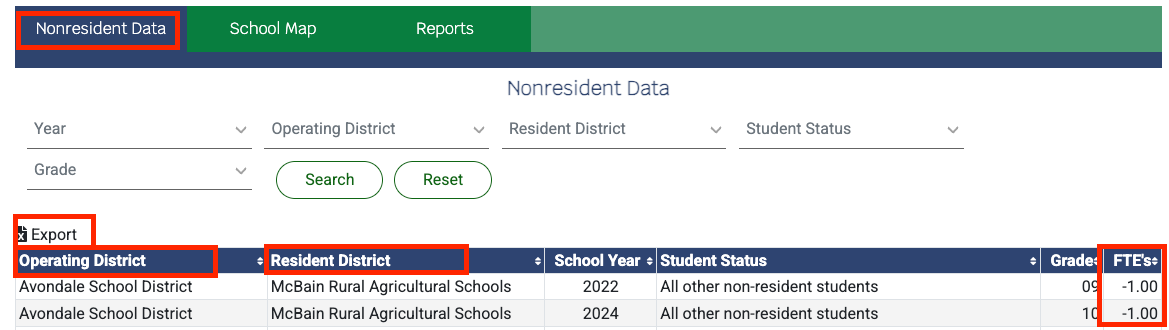
- Use the filters to narrow your results by Year, Operating District, Resident District, Student Status, and Grade.
- The "Operating District" column indicates where students are transferring.
- The "Resident District" column indicates where students reside.
- In the "FTE’s" column, a positive number reflects a gain (Operating > Resident), while a negative number reflects a loss (Resident > Operating).
- Click the "Export" button in the top-left corner to download an Excel workbook.
|
Was this article helpful?
0 out of 0 found this helpful
Have more questions? Submit a request

Comments
0 comments
Please sign in to leave a comment.