
Create a course(s) proportionality report to verify enrollment concerning gender, race/ethnicity, and program status of students.
ACCESSING REPORTS
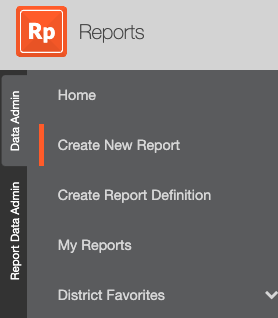
Reports may be accessed by navigating to the Reports App within the Data Extracts Bundle, clicking Launch App, and then clicking Create New Report from the left navigation menu.
Next, browse to the District Reports Folder and click Browse Category.

Locate the Course Enrollment Proportionality Report and click Build Report.

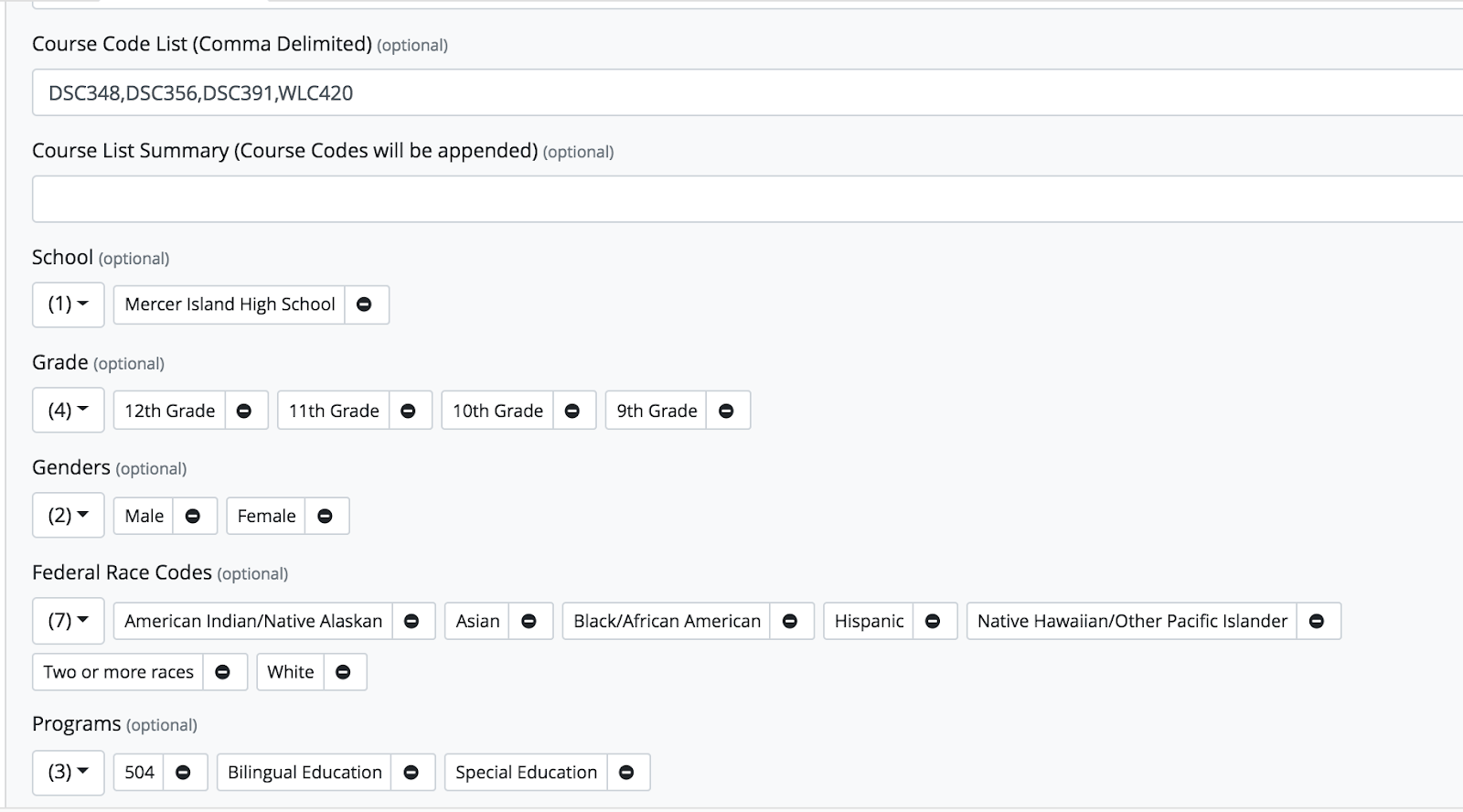
Select Save and Generate (in the upper right)
Give the report a name and again select Save and Generate
The report will begin to generate, and you will be notified when the report is ready for download. The report will include the actual PDF of the results and a validation report that will give you student-by-student details on how the report was generated.
Comments
0 comments
Please sign in to leave a comment.