
Deactivating a Certificated Teacher removes them from Certificated Teacher selectors and their access to the Role without requiring role-dependent data to be removed.
The ability to activate and deactivate Certificated Teachers is restricted to users with the ALE Data Admin Role.
What Happens When a Certificated Teacher is “Deactivated?”
Taking the Deactivation action affects the following items:
- Inactive Certificated Teachers cannot access any pages under the Certificated Teacher Role.
- They will not show in any of the following Certificated Teacher selectors:
- Initiate Student Learning Plan
- Create Class
- Create Course
- Add Subject-Course to Student Learning Plan
- Details page of Student Learning Plans.
- Add substitution record
- Email List
How to Activate/Deactivate Certificated Teachers
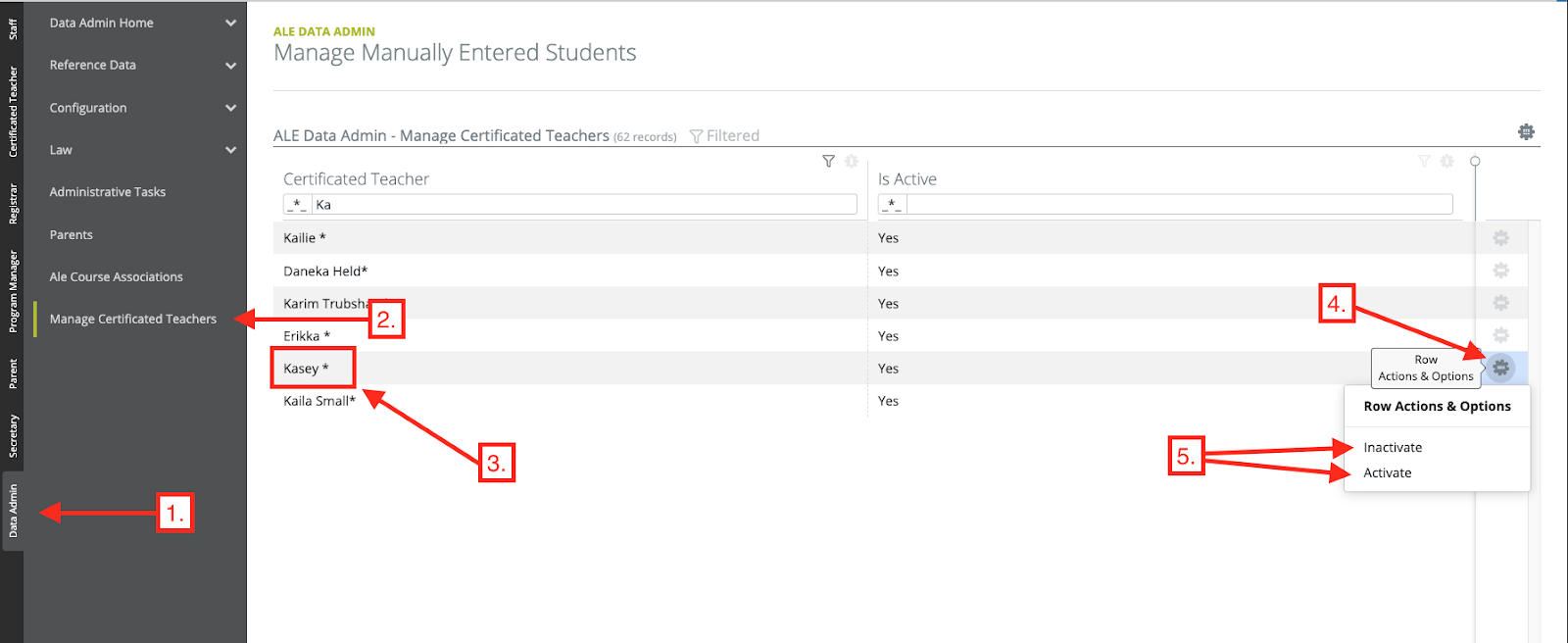
- Select the Data Admin Role.
- Click Manage Certificated Teachers in the left-hand navigation menu.
- Find the Certificated Teacher you want to Activate/Deactivate in the Table.
- Click the Row Actions & Options gear for the teacher.
- Click Activate to Activate the Teacher and Inactivate to Deactivate the Teacher.
Comments
0 comments
Please sign in to leave a comment.