
Here, you will learn to navigate the evaluator/monitor dashboard.
Enter your username and password, then click Sign In. If you forget your password, click Reset Password.
Another way to log in is by using the App Selector. For example, navigate the Human Resources Bundle, click Evaluations V2, and click Launch App.
Roles
In Evaluations, Users have Roles that determine how they access data and interact with the application.
| Evaluator |
Evaluators are responsible for whichever evaluatees are assigned to them. The main functionality that is available to evaluators is as follows:
|
| Evaluatee |
Evaluatees have the following functionality available to them:
|
| Monitor | Monitors have a read-only role. They can only view tasks for the evaluatees they are assigned to. |
Evaluation Dashboard
As an Evaluator (the user evaluating another user), you will be directed first to your Evaluation Dashboard. This displays the Evaluator’s assigned Evaluatees (the people you are evaluating this school year), their Position Level, Supplemental Educators, and Task List. Additionally, each listed Evaluatee displays a summary of their tasks and the observed minutes.
Click the gear in the top right to adjust your view: cards or list. From either view, quickly review Total Minutes Observed, All Tasks, Late Required Tasks, and Completed Tasks.
NOTE: If an Evaluator themselves is being evaluated, they will also have quick access to their evaluation tasks and frameworks by clicking the Evaluatee tab.
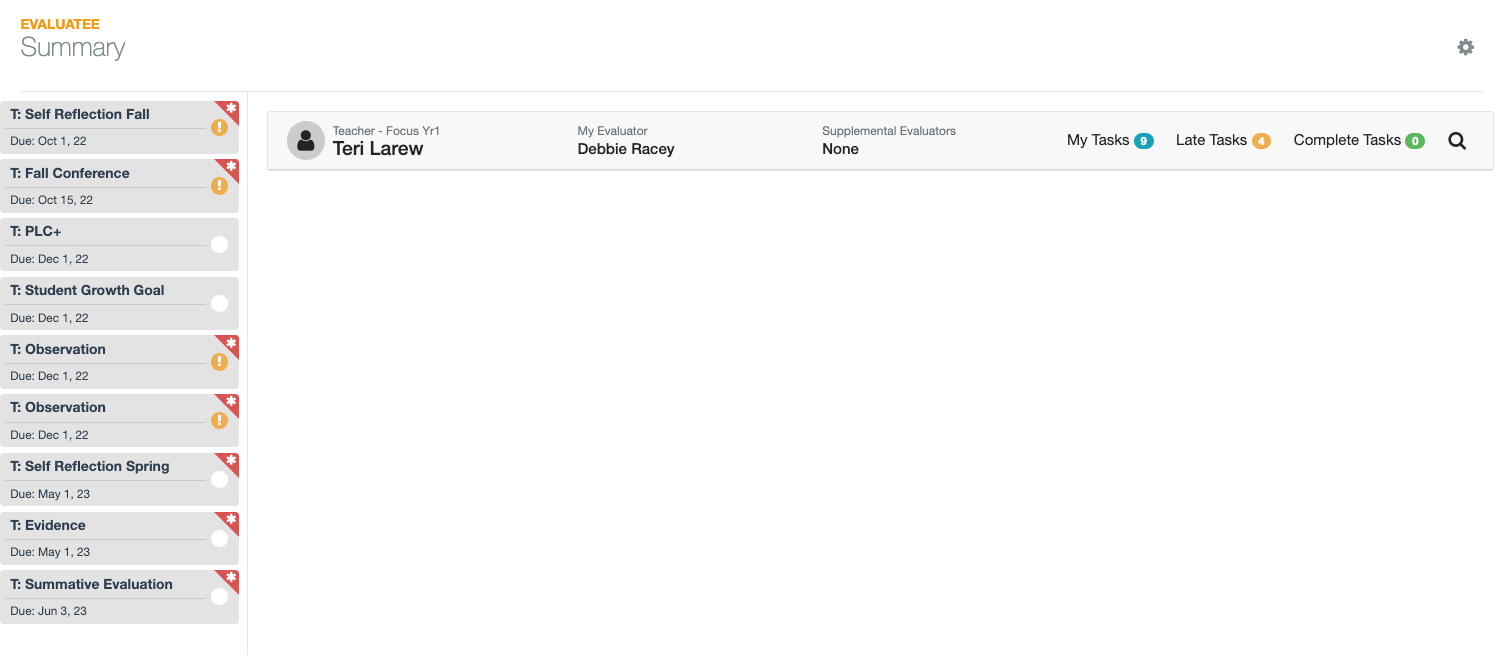 Information on Each Evaluatee
Icons represented next to the Evaluatee’s name do the following:
|
Magnifying Glass - Opens the Evaluatee’s Task List and other areas. NOTE: From the List view, hover to see the task names from the dashboard. Click the circle to go directly to the task. |
|
|
Add Task -Add a task to the Evaluatee’s task list. Additional input is needed. TIP: Tasks added by a user can have their dates and required status edited after being added. To edit, click on the settings gear icon on the added task.
|
|
| Pencil - Change Position Level or Evaluator, and add Supplemental Evaluator. NOTE: If you notice the position level box is greyed out, you must contact your Data Admin to request the Position Level change. |
Changing an Evaluatee’s Position Level
A position level determines which tasks are automatically added to the Evaluatee’s task list and their due dates. As the school year progresses, the Evaluatee is systematically promoted to the next level. (This is a district configuration setting.)
If tasks are filled in with data, those tasks are kept, which may result in duplicates. Using the steps outlined in this article, 🚩 Duplicated Tasks: Evaluator (Connect) The Evaluator and Evaluatee can merge tasks to clean up the task list. If you require additional assistance, please contact support@schooldata.net.
Click the Pencil icon next to the Evaluatee’s name. Next, click the Position Level dropdown from the pop-up and choose the new Position Level. NOTE: If an Evaluator can’t switch, this is a district-wide setting. Send questions about turning this functionality on to your Evaluations District Contact or support@schooldata.net.
Changing an Evaluatee’s Evaluator
With this switch, the Evaluatee will be removed from the current Evaluator’s Dashboard and added to the new Evaluator’s Dashboard.
Click the Pencil icon next to the Evaluatee’s name. From the pop-up, click on the Primary Evaluator dropdown and choose the new Evaluator. Once the new Evaluator is selected, click the OK button to save.
Adding Supplemental Evaluators
Adding Supplemental Evaluators adds the Evaluatee to the Evaluator’s Dashboard and allows them to add and edit any tasks on that Evaluatee’s task list just as the Primary Evaluator can.
A Supplemental Evaluator can not add other Supplemental Evaluators, switch the Evaluatee’s Position Level, or switch the primary Evaluator.
Click the Pencil icon next to the Evaluatee’s name. Then, use the Supplemental Evaluator dropdown menu from the pop-up to add a Supplemental Evaluator. NOTE: If an Evaluator can’t switch, this is a district-wide setting. Please direct questions about enabling this functionality to your Evaluations District Contact or support@schooldata.net.
If there is a need for more than one Supplemental Evaluator, click the + icon to the right of Supplemental Evaluators to add another dropdown to choose one. Once the Supplemental Evaluators are added, click the OK button to save the changes.
Comments
0 comments
Please sign in to leave a comment.